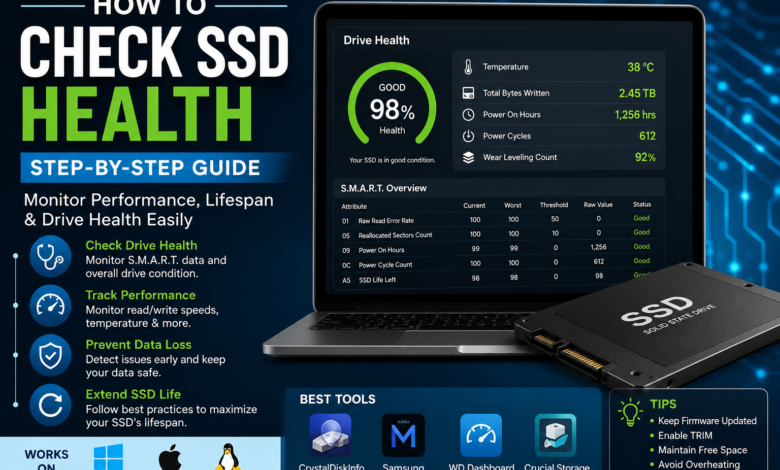
Solid-State Drives (SSDs) have become the preferred storage solution for modern computers due to their speed, reliability, and efficiency. Compared to traditional hard disk drives (HDDs), SSDs offer faster boot times, quicker file transfers, and improved system performance. However, despite their durability, SSDs do not last forever.
Like any storage device, an SSD experiences wear over time. Monitoring its health can help prevent unexpected data loss, performance issues, and costly downtime. Whether you use your computer for work, gaming, content creation, or everyday tasks, regularly checking your SSD’s health is an important part of system maintenance.
This guide explains how SSDs age, why health monitoring matters, and the best methods for checking SSD health on Windows, macOS, and Linux systems.
Understanding SSD Health
Unlike traditional hard drives that rely on spinning disks, SSDs use flash memory cells to store data.
Each memory cell has a limited number of write and erase cycles. Over time, repeated usage gradually wears down these cells.
Modern SSDs are designed to last for years, but monitoring their condition helps ensure that potential problems are identified before they become serious.
Factors Affecting SSD Lifespan
Several factors influence SSD health:
- Total data written
- Drive age
- Operating temperature
- Power cycles
- Workload intensity
- Manufacturing quality
While most users will replace their computer before an SSD completely fails, health monitoring provides valuable insight into drive reliability.
Why Checking SSD Health Is Important
Regular SSD health checks offer several benefits.
Prevent Data Loss
Detecting issues early allows you to back up important files before problems occur.
Maintain Performance
Health monitoring can reveal performance degradation and storage issues.
Extend Drive Life
Understanding drive usage helps optimize system maintenance.
Plan Upgrades
Knowing the remaining lifespan of an SSD helps users prepare for future replacements.
Understanding S.M.A.R.T. Data
Most SSDs support a technology called S.M.A.R.T. (Self-Monitoring, Analysis, and Reporting Technology).
S.M.A.R.T. tracks important metrics related to drive performance and reliability.
Common SSD health indicators include:
- Percentage health remaining
- Total bytes written (TBW)
- Temperature
- Power-on hours
- Read error rates
- Wear leveling count
These values help determine the overall condition of the drive.
How to Check SSD Health in Windows
Windows provides several methods for checking SSD health.
Method 1: Using Command Prompt
- Open Command Prompt as Administrator.
- Type:
wmic diskdrive get status
- Press Enter.
If the result shows OK, the drive is functioning normally.
While simple, this method provides only basic information.
Method 2: Using Windows Settings
Windows 11 includes built-in drive health monitoring.
- Open Settings.
- Navigate to:
System > Storage > Advanced Storage Settings > Disks & Volumes
- Select your SSD.
- View health information.
Depending on your drive and Windows version, you may see health status and estimated lifespan information.
Best SSD Health Monitoring Software
Dedicated monitoring tools provide more detailed information.
CrystalDiskInfo
CrystalDiskInfo is one of the most popular SSD monitoring tools.
Features include:
- Health percentage
- Temperature monitoring
- S.M.A.R.T. data
- Drive statistics
- Real-time monitoring
It supports most SSD brands and provides easy-to-understand health reports.
Samsung Magician
For Samsung SSD users, Samsung Magician offers:
- Drive diagnostics
- Firmware updates
- Performance optimization
- Health monitoring
Crucial Storage Executive
Crucial SSD owners can use Storage Executive to:
- Monitor health
- Update firmware
- Check temperature
- Analyze performance
Western Digital Dashboard
Western Digital SSD users can access detailed diagnostics and drive information through the company’s dashboard software.
Checking SSD Health on macOS
Apple users can monitor SSD health through built-in system tools.
Using Disk Utility
- Open Disk Utility.
- Select your SSD.
- Review drive information.
While macOS provides limited health details, it can identify certain storage issues.
Using Terminal
Advanced users can run:
diskutil info disk0
This command displays drive information and status data.
Third-party tools can provide more detailed SSD health metrics if needed.
Checking SSD Health on Linux
Linux users have powerful monitoring options available.
Install Smartmontools
Most Linux distributions support the Smartmontools package.
Install it using:
sudo apt install smartmontools
Then run:
sudo smartctl -a /dev/sda
Replace /dev/sda with your SSD identifier.
This command displays detailed S.M.A.R.T. information.
Important SSD Health Metrics
Understanding key metrics helps interpret health reports.
Health Percentage
Many monitoring tools display overall drive health as a percentage.
Examples:
- 100% = Excellent condition
- 90–99% = Healthy
- 70–89% = Normal wear
- Below 50% = Monitor closely
Total Bytes Written (TBW)
TBW measures how much data has been written to the SSD.
Manufacturers often specify an expected TBW rating.
Temperature
Ideal SSD temperatures generally range between:
- 30°C to 50°C during normal use
Consistently high temperatures may reduce lifespan.
Power-On Hours
This metric indicates how long the drive has been operational.
Wear Leveling Count
Wear leveling distributes writes evenly across memory cells.
A declining value may indicate aging flash memory.
Signs Your SSD May Be Failing
Several warning signs can indicate SSD problems.
Slower Performance
Unexpected slowdowns may suggest storage issues.
File Corruption
Files becoming inaccessible or damaged can indicate hardware problems.
Frequent Crashes
System instability sometimes results from storage failures.
Read/Write Errors
Repeated errors should not be ignored.
Boot Problems
Difficulty starting the operating system can indicate SSD issues.
If multiple symptoms appear, back up important data immediately.
Tips for Extending SSD Lifespan
While SSDs are durable, proper care can help maximize longevity.
Keep Firmware Updated
Manufacturers release firmware updates that improve reliability.
Avoid Excessive Writes
Minimize unnecessary write operations when possible.
Maintain Free Space
Keeping at least 10–20% free space helps maintain performance.
Prevent Overheating
Ensure proper airflow and cooling.
Enable TRIM
TRIM helps maintain SSD efficiency by managing unused storage blocks.
Most modern operating systems enable TRIM automatically.
When Should You Replace an SSD?
Replacement may be necessary if:
- Health falls significantly below recommended levels
- Frequent errors occur
- Performance deteriorates noticeably
- The drive exceeds its rated endurance
Always maintain regular backups regardless of drive condition.
Conclusion
Checking SSD health is a simple but essential part of computer maintenance. By monitoring drive status, temperature, write cycles, and S.M.A.R.T. data, users can identify potential issues before they lead to data loss or hardware failure.
Whether you use built-in operating system tools, manufacturer software, or third-party utilities such as CrystalDiskInfo, regular SSD health checks help ensure reliable performance and peace of mind.
With proper monitoring, maintenance, and backups, a quality SSD can provide years of dependable service while keeping your system running smoothly and efficiently.