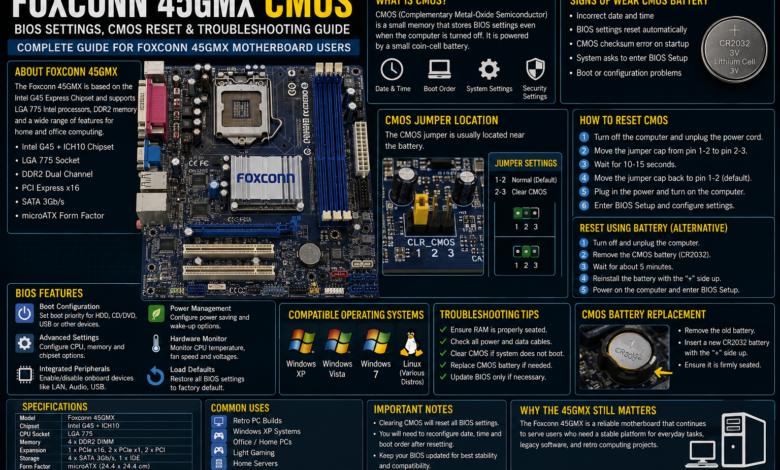
The Foxconn 45GMX motherboard is a well-known microATX board designed for Intel LGA 775 processors. Popular in home computers, office desktops, and OEM systems, it earned a reputation for stability, affordability, and dependable everyday performance. Even years after its release, many users continue restoring these systems for retro computing, Windows XP and Windows 7 installations, or lightweight home servers.
One of the most common topics surrounding this motherboard is the CMOS (Complementary Metal-Oxide Semiconductor), which stores BIOS configuration settings such as boot order, system time, processor configuration, memory settings, and hardware preferences. Searches for Foxconn 45GMX CMOS often relate to resetting BIOS passwords, replacing the CMOS battery, or fixing boot issues.
This guide explains how the CMOS works, when it should be reset, and the best practices for maintaining a Foxconn 45GMX motherboard.
What Is the Foxconn 45GMX Motherboard?
The Foxconn 45GMX is an Intel-based motherboard built around the Intel G45 Express chipset. It supports a range of Intel processors and provides reliable performance for general computing tasks.
Typical features include:
- Intel LGA 775 processor socket
- Intel Core 2 Duo support
- Intel Core 2 Quad support (compatible models)
- Pentium Dual-Core processors
- DDR2 memory support
- PCI Express x16 expansion slot
- SATA storage connectors
- Integrated graphics on supported models
- USB 2.0 connectivity
These features made the board suitable for home, education, and office environments.
Understanding CMOS
CMOS is a small memory chip that stores BIOS settings even when the computer is turned off.
It retains information such as:
- Date and time
- Boot priority
- CPU configuration
- Memory settings
- SATA mode
- Integrated device settings
- Power management options
- Security passwords (on supported BIOS versions)
A small coin-cell battery powers the CMOS memory when the system is unplugged.
When Should You Reset the CMOS?
Resetting the CMOS can solve several common problems.
You may need to clear the CMOS if:
- The PC fails to boot after BIOS changes.
- You forgot BIOS configuration settings.
- Hardware upgrades are not detected.
- Overclocking settings prevent startup.
- Incorrect boot options cause startup errors.
- System stability problems appear after configuration changes.
A CMOS reset restores the BIOS to factory default settings.
How to Reset the Foxconn 45GMX CMOS
Follow these steps carefully.
Step 1: Shut Down the Computer
Turn off the PC completely and disconnect the power cable.
Step 2: Ground Yourself
Touch a grounded metal object or wear an anti-static wrist strap to avoid electrostatic discharge.
Step 3: Locate the CMOS Jumper
Most Foxconn 45GMX motherboards include a clear CMOS jumper near the battery.
Consult the motherboard manual if necessary.
Step 4: Move the Jumper
Move the jumper from its default position to the clear position for approximately 10–15 seconds.
Return it to the original position afterward.
Step 5: Reconnect Power
Reconnect the power cable and start the computer.
The BIOS should load with factory default settings.
Removing the CMOS Battery
If the motherboard lacks an accessible jumper or a reset does not resolve the issue:
- Disconnect power.
- Remove the CR2032 CMOS battery.
- Wait approximately five minutes.
- Reinstall the battery.
- Power on the system.
- Enter BIOS Setup to configure the date, time, and boot order.
Signs of a Weak CMOS Battery
A failing CMOS battery can cause several symptoms.
Common signs include:
- Incorrect date and time after shutdown
- BIOS settings resetting automatically
- Boot warnings about CMOS checksum errors
- Frequent requests to enter BIOS Setup
- Startup configuration problems
Replacing the battery usually resolves these issues.
BIOS Features on the Foxconn 45GMX
The motherboard BIOS allows users to configure various hardware settings, including:
Boot Configuration
Select the preferred boot device.
CPU Settings
View processor information and supported configuration options.
Memory Configuration
Adjust memory timing and related settings where available.
Storage Options
Configure SATA devices and boot priorities.
Integrated Devices
Enable or disable onboard audio, LAN, and USB controllers.
Hardware Monitoring
Monitor CPU temperature, fan speeds, and system voltages.
Compatible Operating Systems
The Foxconn 45GMX works well with several operating systems, including:
- Windows XP
- Windows Vista
- Windows 7
- Selected Linux distributions
Many retro PC enthusiasts prefer Windows XP or Windows 7 because of their excellent driver support.
Common Troubleshooting Tips
If your system still experiences issues after resetting the CMOS:
- Verify that RAM modules are seated correctly.
- Inspect the motherboard for damaged capacitors.
- Replace the CR2032 battery if it is old.
- Reset BIOS settings again if necessary.
- Disconnect unnecessary hardware during testing.
- Update the BIOS only when recommended by Foxconn documentation.
Maintenance Tips
To extend the life of your motherboard:
- Clean dust from fans and heatsinks.
- Replace dried thermal paste.
- Use a reliable power supply.
- Check for loose SATA and power cables.
- Store BIOS updates and motherboard manuals for future use.
Proper maintenance helps older hardware remain dependable for years.
Why the Foxconn 45GMX Remains Popular
Although it is a legacy platform, the Foxconn 45GMX continues to attract enthusiasts because it offers:
- Stable LGA 775 performance
- Good Windows XP compatibility
- Affordable restoration
- Support for classic Intel processors
- Easy maintenance
- Strong retro computing appeal
These qualities make it a practical choice for vintage PC projects.
Conclusion
The Foxconn 45GMX motherboard remains a reliable platform for retro computing, legacy software, and Windows XP or Windows 7 systems. Understanding how the CMOS works—and how to reset it safely—can resolve many common startup and BIOS-related issues.
Whether you are replacing the CMOS battery, clearing BIOS settings after a failed configuration, or restoring a classic LGA 775 computer, proper maintenance and careful troubleshooting can keep the Foxconn 45GMX running reliably for many more years.